Most web applications today are developed with modern frontend frameworks such as React, Angular, or Next.js, and all browsers can be divided into three groups: those based on the Chromium engine, Firefox running on Gecko, and Safari running on WebKit. Since the beginning of Playwright, Chrome, Firefox, and Safari have all been supported. This eliminates the once-common argument for the need for a cross-browser framework. Playwright covers everything.
Impressive Features
Playwright’s superior cross-browser testing capabilities are due to its unique architecture. Unlike Selenium, Playwright interacts with the browser at the API level, which allows it to work more efficiently and bypass the limitations of traditional browser automation frameworks. This makes it faster, more reliable, and easier to maintain.
Playwright, like Selenium, has the unique advantage of supporting multiple programming languages, including JavaScript, TypeScript, Java, Python, and C#. This makes it easy to integrate into existing projects and ensures that teams can work in the language they are most comfortable with.
Overall, Playwright is a powerful and flexible tool that can help QA engineers streamline their testing process and ensure that their web applications work flawlessly across all major browsers and platforms.
To recap the top features highlighted on the Playwright official website, we can list them and examine each one:
- Cross-browser, cross-platform, and cross-language support
- Resilience
- No trade-offs
- Simple test isolation and authentication persistence
- Visual Studio Code integration, test code generation, and selector picking
Installation
There are two ways to install the software. The first method is to use a Node.js package manager like npm. If you choose this method, you will need to have Node.js installed on your computer. For other languages, you can use pypi for Python, Maven for Java, and for C#, you can use .NET CLI commands like “dotnet add package” to install playwright dependencies.
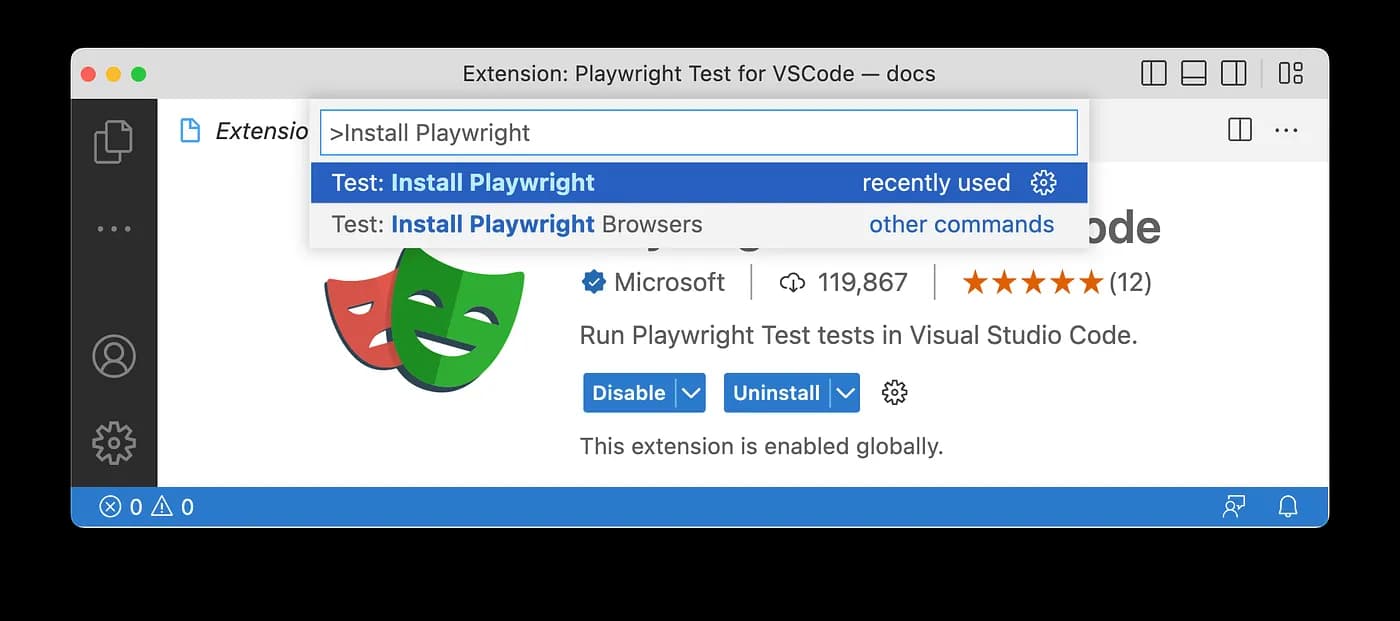
The second method is to install the playwright extension for VSCode, which comes with convenient commands for installation. This method makes the entire process smoother and much easier.
To defend the first feature of Playwright, we can say that it supports all modern browsers without real limitations on any platform. While it also supports popular languages and technologies, the best-supported language is Typescript/Javascript. For instance, if you want to use Playwright with Java, you need to choose your favorite test runner, such as JUnit, and manage Playwright objects, like BrowserContext and Page. Additionally, you would need to find a solution for HTML reporting.
When selecting a new testing framework, there are often tradeoffs and limitations to consider. While modern testing frameworks typically focus on modern technologies and frontend frameworks, QA engineers may still need to work on legacy projects developed with older technology like JSF and web applications with components like iFrame or its successor shadow-roots. Even slow response times of web application components can pose a real challenge for modern testing frameworks.
In my experience, automating a JSF application with Selenium was much more seamless than with other modern testing frameworks like Playwright, Cypress, or Puppeteer. For modern web frameworks, I would recommend Playwright or one of the similar testing frameworks. While any web application can still be automated using Selenium, applications with many shadow-root elements may require a more robust approach. Piercing Shadow DOM with Playwright can make automation much easier and the script much more resilient to future changes.
In summary, choosing Playwright does not require many tradeoffs. However, it is important to note that it has a focus on modern web applications and speed.
We should first look at certain objects in Playwright in order to understand the notion of test isolation. To create an automation script utilising the Library API, a browser session must be opened. Now, a Browser object contains a few methods, one of which is newContext (). And it is just this object that enables us to begin a new session in the same manner that we begin a new incognito browser session on our PC. There is no need to end the current main browser session, for instance, if we need to login with a different user to check the changes.
(async () => {
  const browser = await playwright.firefox.launch();  // Or 'chromium' or 'webkit'.

  // Create two isolated browser contexts
  const adminContext = await browser.newContext();
  const userContext = await browser.newContext();

  // Create pages and interact with contexts independently
  const adminPage = await adminContext.newPage();
  await adminPage.goto('https://example.com/admin');

  const userPage = await userContext.newPage();
  await userPage.goto('https://example.com/user');

  // Gracefully close up everything
  await adminContext.close();
  await userContext.close();
  await browser.close();
})();
Playwright also offers a way to implement logins and save cookie sessions in json files. Existing sessions can be used each time a new test requires one, saving time spent logging into the application and significantly reducing execution time.
// auth.setup.ts
import { test as setup } from '@playwright/test';

const authFile = 'playwright/.auth/user.json';

setup('authenticate', async ({ page }) => {
  // Perform authentication steps. Replace these actions with your own.
  await page.goto('https://github.com/login');
  await page.getByLabel('Username or email address').fill('username');
  await page.getByLabel('Password').fill('password');
  await page.getByRole('button', { name: 'Sign in' }).click();
  // End of authentication steps.

  await page.context().storageState({ path: authFile });
});
The tooling offered by Playwright is robust, however it must be noted that this is only available if you use VSCode. If you choose Java and IntelliJ, for example, you won’t get some of these capabilities.Testing and debugging are both made possible with the VSCode plugin. Handy feature that allows you to pick a selector with a single mouse click and much more.
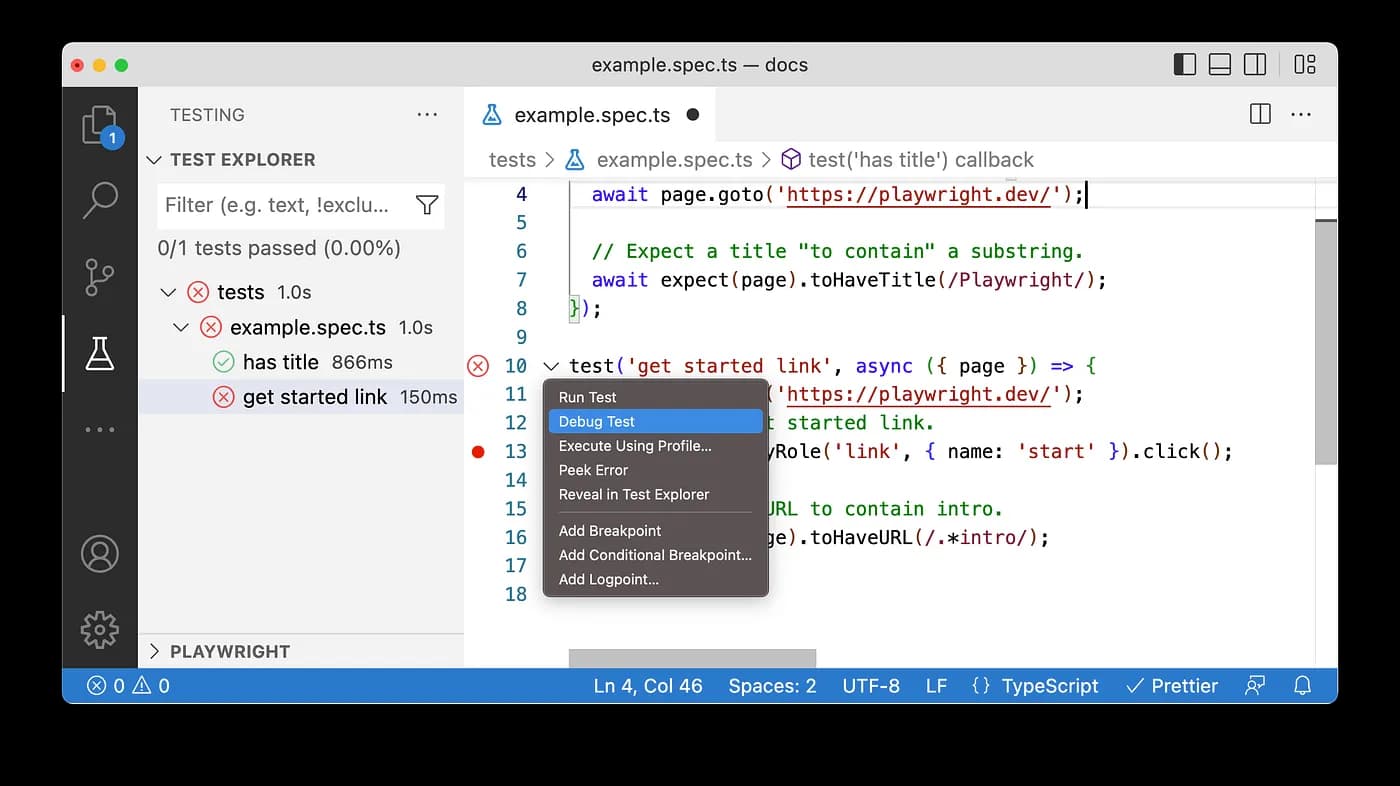
One of the selling points for Playwright is definitely its auto code generation feature. While this feature is not new and other frameworks have it as well, generating code first and then improving it is always practical. Whether this allows people without coding skills to fully automate tests is debatable.
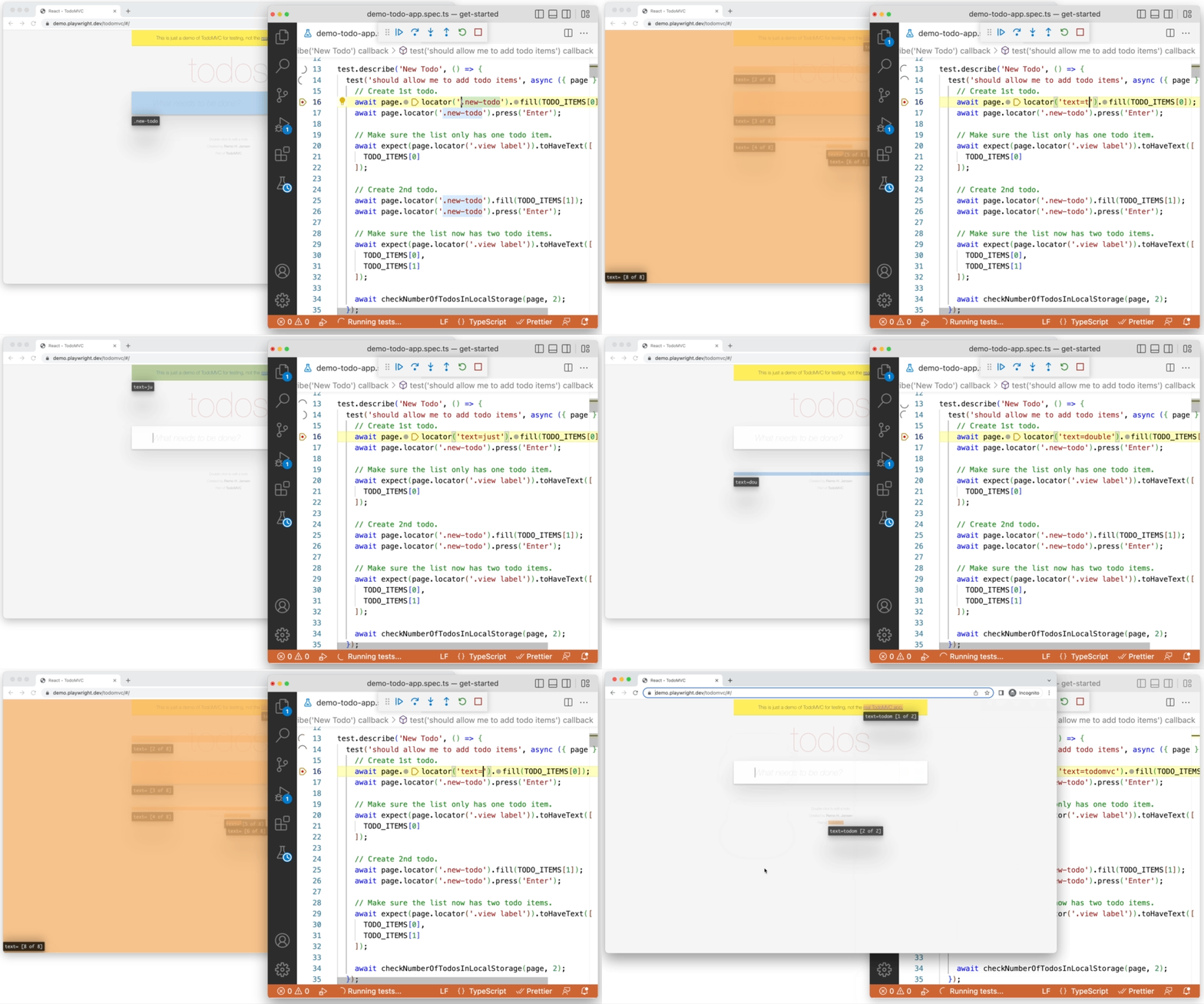
Writing locator and live debugging are quite helpful. By doing this, we may save time and increase our ability to write robust scripts by observing where an element locator resolves. Yet, I must admit that live debugging can be improved and made more fluid when creating, debugging, and executing actions are all done in the same window.
Writing Tests
We have already seen some code on how to write tests. If you choose to write tests with the Library API, you will have to manage objects like Browser, BrowserContext, and Page. The good thing about Playwright is that it provides us with a playwright/test dependency which exports fixtures like test, page, and expect. We will go into more detail about fixtures, but let’s see one simple example first.
import { test, expect } from '@playwright/test';

test('has title', async ({ page }) => {
  await page.goto('https://playwright.dev/');

  // Expect a title "to contain" a substring.
  await expect(page).toHaveTitle(/Playwright/);
});

test('get started link', async ({ page }) => {
  await page.goto('https://playwright.dev/');

  // Click the get started link.
  await page.getByRole('link', { name: 'Get started' }).click();

  // Expects the URL to contain intro.
  await expect(page).toHaveURL(/.*intro/);
});
In this example, we don’t see the creation of objects like Browser or BrowserContext. However, we must know that these objects are automatically created and closed for every test in our script. Which Browser will be used is defined in the playwright.config file. Of course, not only which browser should be used, but many more configurations can be defined in the global config file.
Running Tests
Running tests is possible using the VSCode extension or nodejs command lines. The simplest command is npx playwright test. This command searches in the TestDir (default: ./tests) for all files with the extensions .spec.js or .spec.ts. We can provide additional arguments for specific folders, files, projects, headless options, and more. For more details, please refer to the official documentation.
Fixtures
As was already indicated, writing tests using the API Library or Playwright Test differs. The foundation of Playwright Test is the concept of fixtures, which essentially implies that we are creating an environment in order to run tests. Playwright comes with some built-in fixtures where some of them are commonly used.
- page of type Page — Isolated page for this test run.
- context of type BrowserContext — Isolated context for this test run. The page fixture belongs to this context as well.
- browser of type Browser — Browsers are shared across tests to optimize resources.
- browserName of type string — The name of the browser currently running the test. Either chromium, firefox or webkit.
- request of type APIRequestContext — Isolated APIRequestContext instance for this test run.
If we follow the page object model pattern, we may be able to create our own page classes and object instances. If we use the same instance in multiple tests, we must group the tests and instantiate the object in the beforeEach hook. We could use the afterEach hook to clean up everything at the end of each test execution. As this may work perfectly, we can extract this code and make it more reusable with fixtures. Let’s look at an example of a fixture made with page objects.
// my-test.js
const base = require('@playwright/test');
const { TodoPage } = require('./todo-page');
const { SettingsPage } = require('./settings-page');

// Extend base test by providing "todoPage" and "settingsPage".
// This new "test" can be used in multiple test files, and each of them will get the fixtures.
exports.test = base.test.extend({
  todoPage: async ({ page }, use) => {
    // Set up the fixture.
    const todoPage = new TodoPage(page);
    await todoPage.goto();
    await todoPage.addToDo('item1');
    await todoPage.addToDo('item2');

    // Use the fixture value in the test.
    await use(todoPage);

    // Clean up the fixture.
    await todoPage.removeAll();
  },

  settingsPage: async ({ page }, use) => {
    await use(new SettingsPage(page));
  },
});
exports.expect = base.expect;
This fixture now extends built-in test fixtures and instantiates our TodoPage class object. We can carry out some actions and expose this object through method use (todoPage). This allows us to use the object in our tests. To do so, we must import the test from our fixture as follows:
const { test, expect } = require('./my-test');
Besides built-in fixtures, we can use our own and combine them. The tests have clean structure and a layer of abstraction which makes tests more readable. Let’s see full example.
const { test, expect } = require('./my-test');

test.beforeEach(async ({ settingsPage }) => {
  await settingsPage.switchToDarkMode();
});

test('basic test', async ({ todoPage, page }) => {
  await todoPage.addToDo('something nice');
  await expect(page.getByTestId('todo-title')).toContainText(['something nice']);
});
Fixtures are advanced topic in Playwright, but understanding them can help us unlock some of the best features of Playwright.
Conclusion
This article will only scratch the surface, highlighting some of the features and arguments that make Playwright an excellent choice for automating any application. Daily usage, more experience, and experimenting with other features such as API calls and mocks, visual comparison, component testing, experimental mode for mobile testing, and many others could provide us with a complete picture of Playwright’s potential.
Choosing a testing framework can be difficult because many scenarios from our daily work with automation must be considered. The last thing we want to do is go with a new fancy framework and then discard it after a while because it didn’t meet our needs. Playwright matures with each new version that is released.
The current state of Playwright makes it ready to be used within any technology stack and the first choice for most teams automating frontend application testing. I’d love to know which features you like best and if there is anything you’re missing that makes you want to stick with other framework than Playwright.


