Robot Framework for Testautomation supports various technology stacks through Library extensions. Robot framework is written in Python, so therefor we need python installation and pip package manager. Browser Library is a wrapper around Playwright framework which is written in Javascript using nodejs. To setup Robot framework on fresh OS installation the list of tools and packages to be installed goes like this:
- Python with pip
- Nodejs with npm
- Visual Studio Code
Python installation
OS Environment in my case is Ubuntu 20.04 and we gonna follow installation guide for Linux, but similar principal can be followed with Windows or Mac OS.
On some OS distributions you will find python already installed. Usually it is python 2.7 version. On my Ubuntu installation I have python 3.8 installed which is compatible version for robot framework. In some cases it is recommended to use newest version of python, but if you plan to use some libraries you should check if they are compatible with newest version of python and robot framework. Currently active version of python is 3.10.1.
To find new Python installation we go to Python Downloads. Current version can vary and if you follow this guide later there could be newer version available.
For this guide you can carry on with already installed version of Python, which is 3.8 or you can install the latest. On Ubuntu you can install python via standard debian sources or you can compile official source package. Here is nice overview how you can do that.
Now you need package manager for python, which is known under the name pip. With pip you will be able to install robot framework and browser library. The easiest way to install any package on ubuntu is apt install command from standard debian sources and for our specific case the next command will install pip.
sudo apt install python3-pip -yFor windows installation you can use .msi installation package or chocolatey package installation manager.
In case of mac OS I would recommend installation with brew.
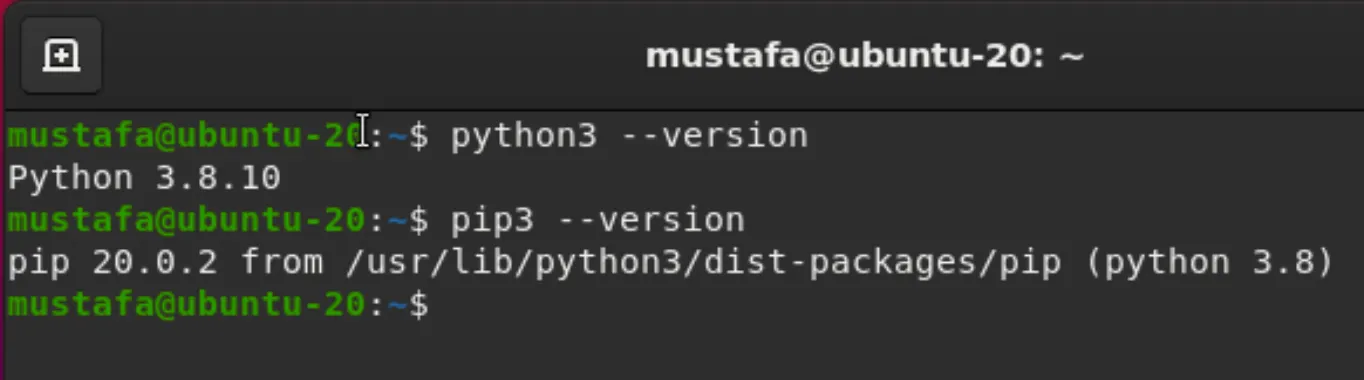
After successful installation we can verify our installation.
Robot framework installation
Now we are able to install python libraries using pip. First, we gonna install robot framework.
pip3 install robotframework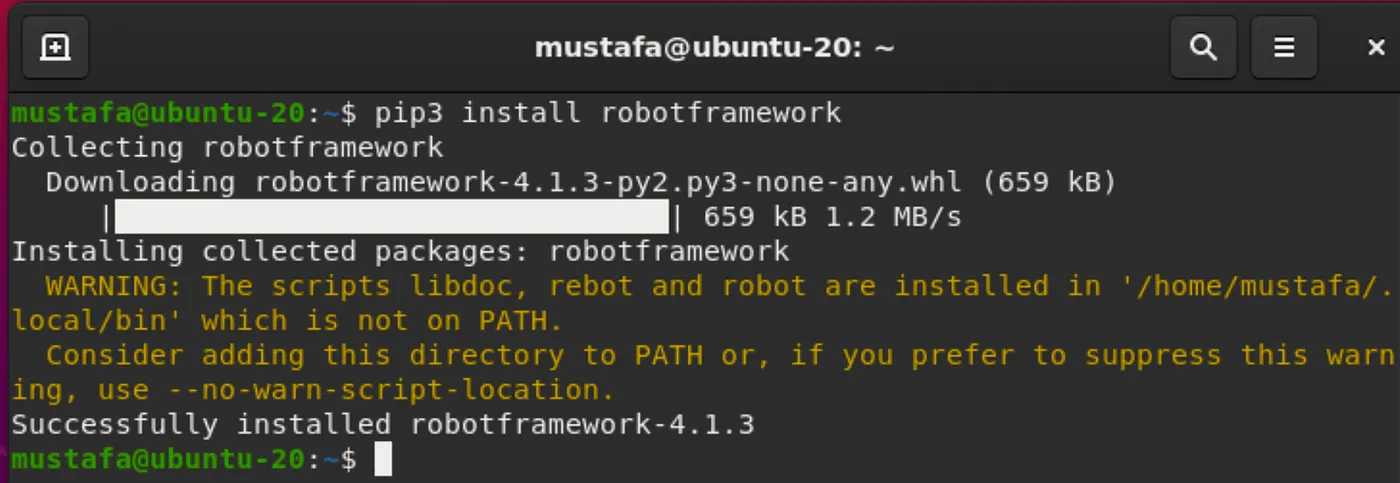
Run following command so you can update PATH and your installation “knows” about robot.
source ~/.profileCheck your robot installation.
robot --version
Browser Library and Nodejs Installation
Now, as we have our python and robot framework installed we can proceed to Browser Library installation. As already mentioned, we need nodejs installation because Browser Library is wrapper around Playwright which is implemented in Javascript with nodejs.
Using standard apt install command our nodejs could install older version. So, first we need to update our source to the newest version. Currently active version is 17.x
cd ~curl -sL https://deb.nodesource.com/setup_17.x -o nodesource_setup.shThe script will update our source with newest node version.
Execute script.
sudo bash nodesource_setup.shNow, we can install node using standard command.
sudo apt install nodejs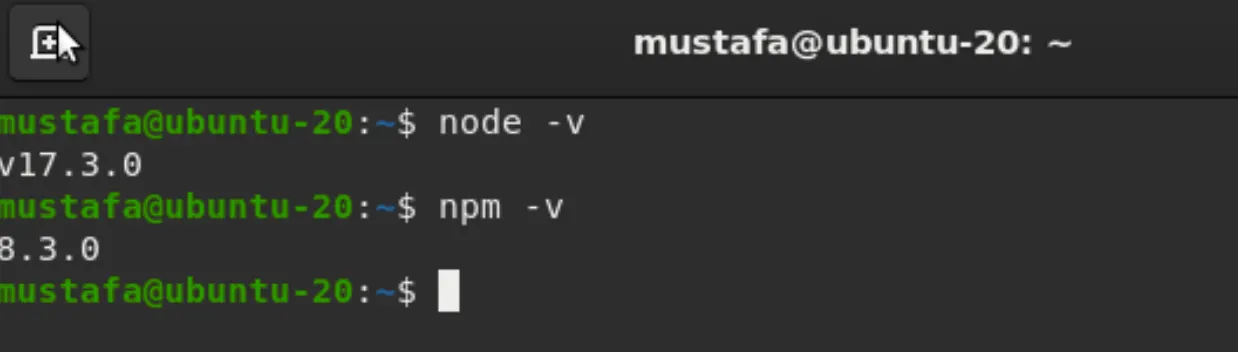
Now, we will install browser library with pip and start initialization process.
pip3 install robotframework-browserAfter browser library is installed we need to start rfbrowser init command, which will setup package.json file, install npm dependencies and playwright. Additionally, this command will download 3 open source browsers (chromium, firefox, webkit) which can be skipped with argument skip-browsers. You can find more about these options on official page.
rfbrowser initVisual Studio Code Installation
Now that we have finished our setup with robot framework and browser library the only thing left is to write and run some tests. You can write your tests in any text editor, but my recommendation would be Visual Studio Code. Alternatively, you can of course use IntelliJ, or any other IDE you prefer.
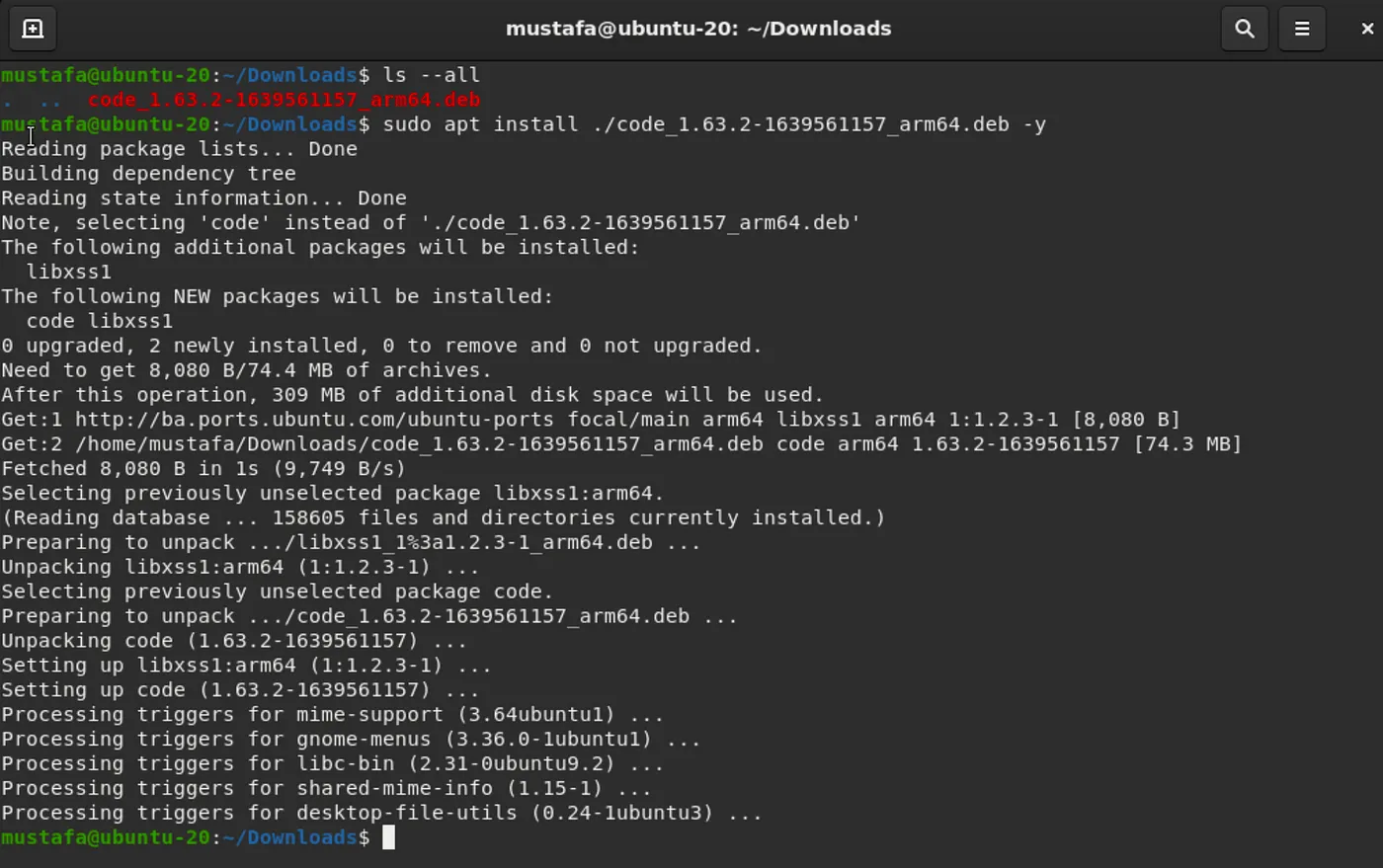
In this case ubuntu is running on arm architecture, so we download install arm64 package. The same process goes for x86_64, you just need to find suitable installation package for your architecture.
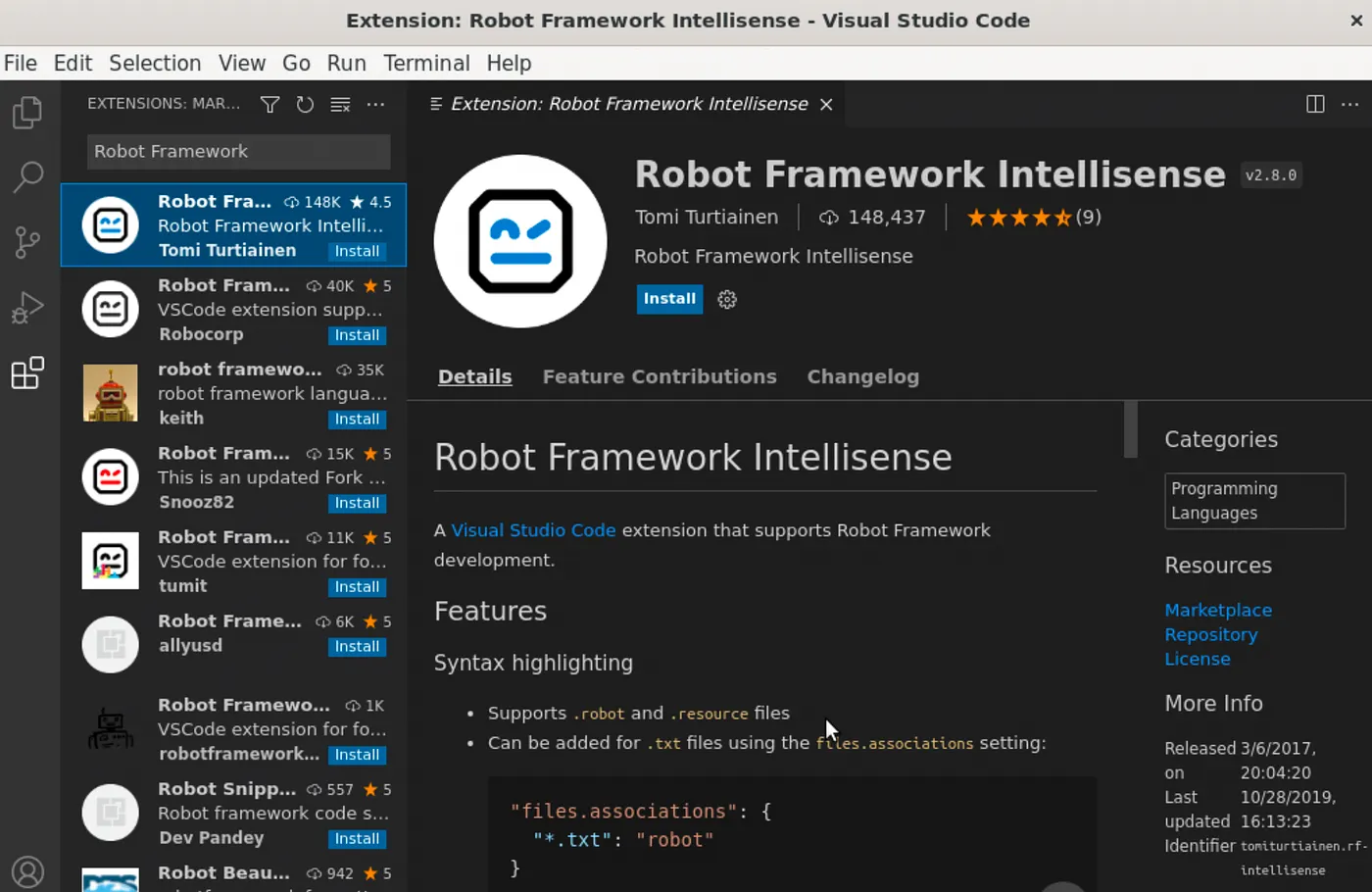
If you like your code in a nice formatted way and keywords outlined with different colors, you should install Robot Framework Intellisense extension.
Create new folder for the project and add demo.robot file for our example test.
*** Settings ***
Library   Browser

*** Variables ***
${browser}=    firefox
${headless}=   ${False}
${URL}=        https://playwright.dev

*** Test Cases ***
Example Test
    Open Browser   browser=${browser}   headless=${headless}   url=${URL}
    Get Text    h1    ==    Playwright enables reliable end-to-end testing for modern web apps.
    Take screenshot
demo.robot test case
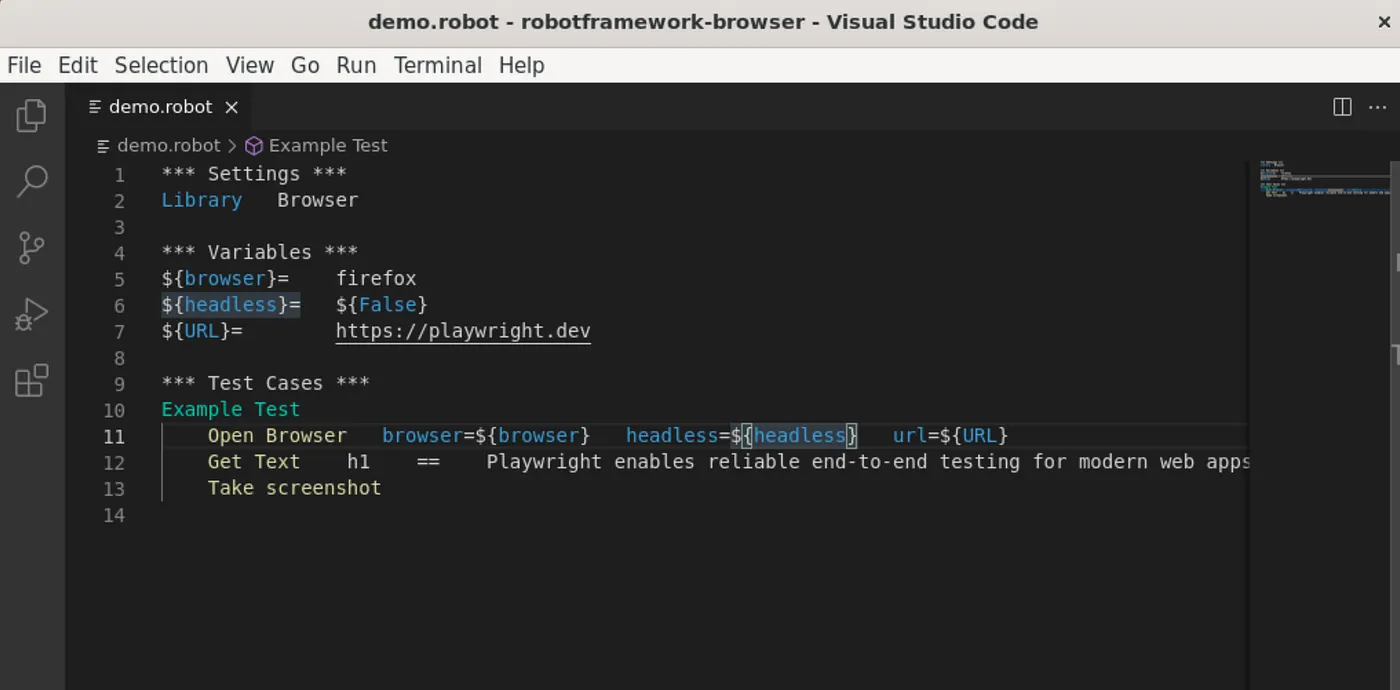
Our demo test in visual studio code should look like on next picture.
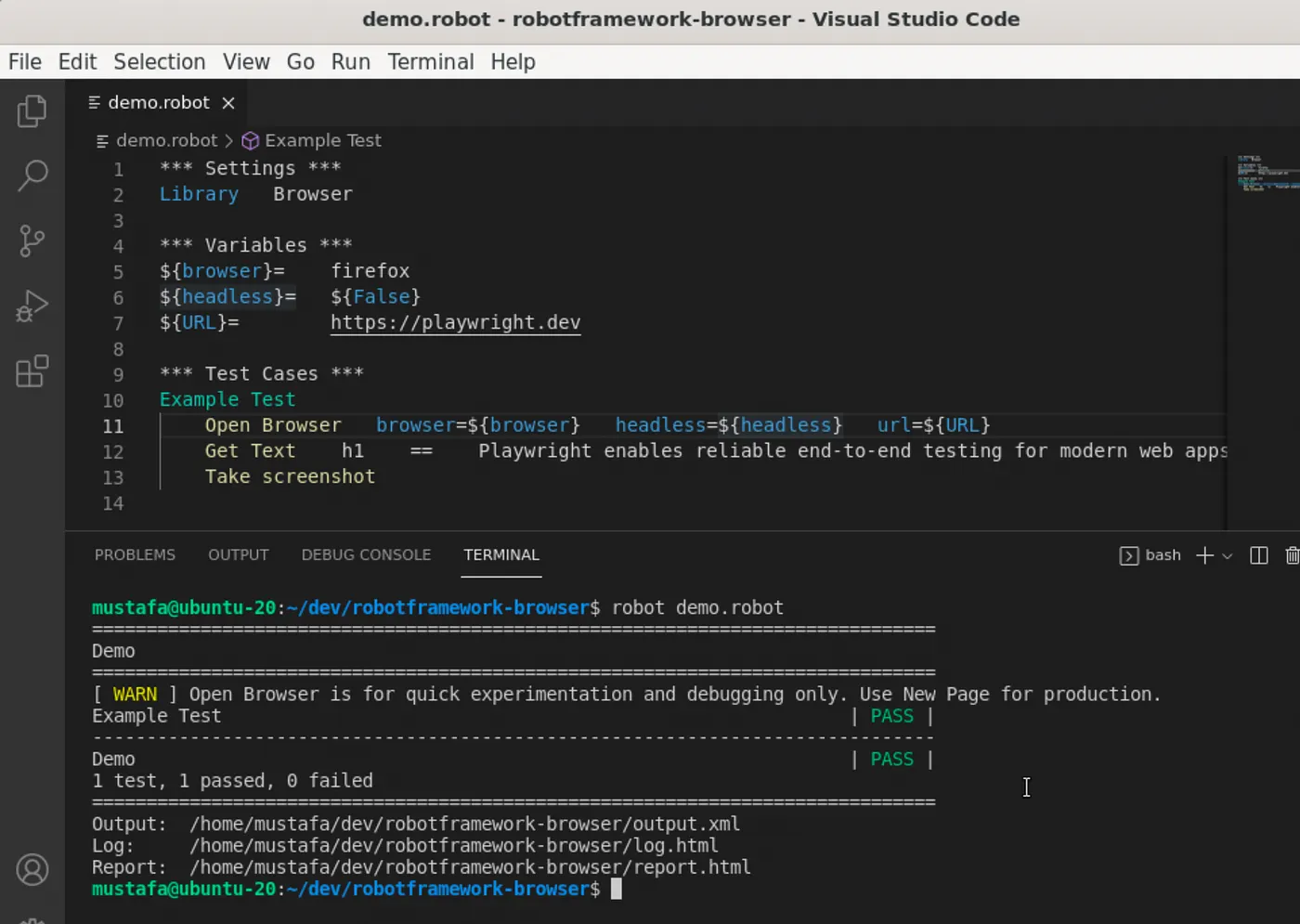
The next step is to execute our test case. We can do that directly in Visual Studio Code opening Terminal. To execute our test write following command:
robot demo.robot
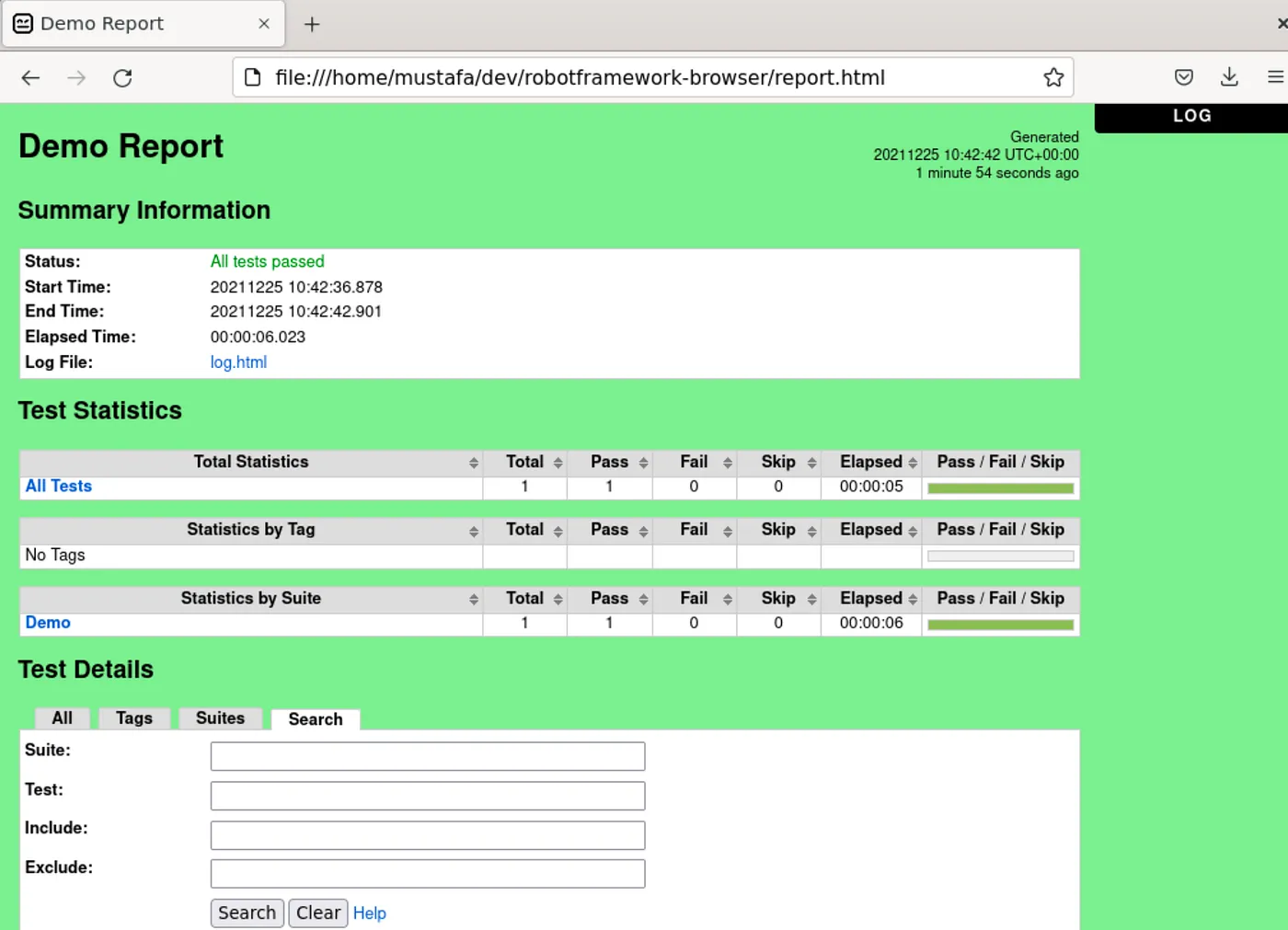
During test execution robot framework has created some reports. We can check our execution with more details opening report.html file. To switch for more details check log.html.
Running Robot Framework on different platforms and CI/CD tools
Writing and running end to end tests can demand different scenarios. After we write our tests, we want them executed everywhere and also in CI/CD pipeline like Jenkins. To use robot framework in Jenkins it is recommended using docker images. For any new browser library version there is corresponding official docker image available on docker hub.
If you would like to read more about running robot framework on other platforms or docker in CI/CD please write your feedback.


